> ## Documentation Index
> Fetch the complete documentation index at: https://docs.contentignite.com/llms.txt
> Use this file to discover all available pages before exploring further.
# Video Config
> Describe the content and content behaviour of your video unit
export const Image = ({src, branded = false, alt = ""}) => {
const imgParts = src.split(".");
const brandClass = branded ? " branded" : "";
return <>
;
};
Video configs allow you to configure the content that will serve to a video unit on your network. They work alongside unit configs (which control the targeting and behaviour of a video unit) to serve content and ads to your publishers in a highly configurable way.
Video configs can target everything across your network in one go (network default) or go more granular and target specific publishers or audiences. Use as many configs as needed to serve relevant content to your video units.
A simple and fully functional set-up can use a single video config to enable auto-content across an organisation, with optional fallback videos. A more complex set-up may target individual audiences with audience-specific video playlists.
## Auto-content
Auto-content is a powerful system that builds videos on the fly. It allows you to tap into video monetisation without investing in your own video content creation, while also circulating users around your sites!
We either look to your RSS feed for the latest articles, or through our logs for the most popular articles. We then piece together a video using your article's title and feature image along with your publisher branding (logo and display name) to create bespoke video content. For each article shown, a "Read more" button is displayed linking to that article, circulating users around your site with all actions of course viewable from our reporting!
Content is periodically re-generated to keep it up-to-date. Each generated video is viewable from the video config that controls it, so you can always see what we are serving!
*NOTE:* Please allow up to 30 minutes for your auto-content to be built upon the creation or implementation of change.
### Branding
Be sure to set your publisher's display name and logos inside publisher settings if you want these to be added to your auto-content video.
### RSS Feed
If you select the "Latest" content focus, then we will look for the RSS feed set in your publisher settings. This can be any URL, for example, you could use a 3rd party service to curate an RSS feed just for your video content!
**Your RSS feed must contain a `title`, `link`, `pubDate` and `media` or image `enclosure` field.**
### Rendering
Content is periodically re-generated to keep it up-to-date. Each generated video is viewable from the video config that controls it, so you can always see what we are serving.
We can fail to generate content for a number of reasons, so we make every effort to show you the reason for failure in the dashboard. Simply go to the relevant video config and select the target in the "Auto-content preview" section. Videos can fail if there is not enough content found, missing images in your RSS feed, RSS feed errors etc.
Also, be sure to set your publisher's display name (how you would like your brand to be written), and light and dark logos on the publisher settings page, so these can be added to your video.
## Video playlist
You can upload your own video content. This can be used instead of auto-content if you have your own video content/strategy or can be used as a fallback to auto-content if you want to guarantee video ad serving opportunity.
Simply upload your files (or drop in the link to any self-hosted content) and make your selection, dragging items to re-order as needed.
If auto-content is enabled, auto-content will always take precedence, and only fall back to your playlist when needed. See [video config hierarchy](/publishers/video-config#hierarchy).
## Targets
Targets are either the organisation you are logged in as, a publisher, or an audience.
Selecting your organisation means all publishers will inherit these settings by default. This will NOT create an organisation-level video via auto-content but will create one video per publisher where applicable.
Publisher and audience targets act as you would expect. Be aware that each target can only be used in one video config, and that when a page on a publisher's site matches more than one target, the more granular targets take precedence, see [video config hierarchy](/publishers/video-config#hierarchy).
## Hierarchy
You can target video content to your organisation (network default), individual publishers and audiences. Each target can only be used once, and the more granular targets take precedence.
For example, if you have a config set up for your entire network, another for a publisher and another for an audience, if a particular publisher page on site matches all three, the Audience config will be used, followed by the publisher config (if the audience is not matched) then by the organisation config.
```mermaid theme={null}
flowchart TD
start([In-stream unit loads])
ender([No videos to load, abort])
audience1{Audience config match?}
audience2{Auto-content enabled and found?}
audience3([Load Auto-content & loop])
audience4{"Has fallback video(s)?"}
audience5(["Load fallback video(s)"])
publisher1{Publisher config match?}
publisher2{Auto-content enabled and found?}
publisher3([Load Auto-content & loop])
publisher4{"Has fallback video(s)?"}
publisher5(["Load fallback video(s)"])
organisation1{Organisation config match?}
organisation2{Auto-content enabled and found?}
organisation3([Load Auto-content & loop])
organisation4{"Has fallback video(s)?"}
organisation5(["Load fallback video(s)"])
style audience3 fill:#F66F5E
style audience5 fill:#F66F5E
style publisher3 fill:#F66F5E
style publisher5 fill:#F66F5E
style organisation3 fill:#F66F5E
style organisation5 fill:#F66F5E
style ender fill:#F66F5E
start --> audience1
audience1 -- Yes --> audience2
audience2 -- Yes --> audience3
audience2 -- No --> audience4
audience4 -- Yes --> audience5
audience4 -- No --> publisher1
audience1 -- No --> publisher1
publisher1 -- Yes --> publisher2
publisher2 -- Yes --> publisher3
publisher2 -- No --> publisher4
publisher4 -- Yes --> publisher5
publisher4 -- No --> organisation1
publisher1 -- No --> organisation1
organisation1 -- Yes --> organisation2
organisation2 -- Yes --> organisation3
organisation2 -- No --> organisation4
organisation4 -- Yes --> organisation5
organisation4 -- No --> ender
organisation1 -- No --> ender
```

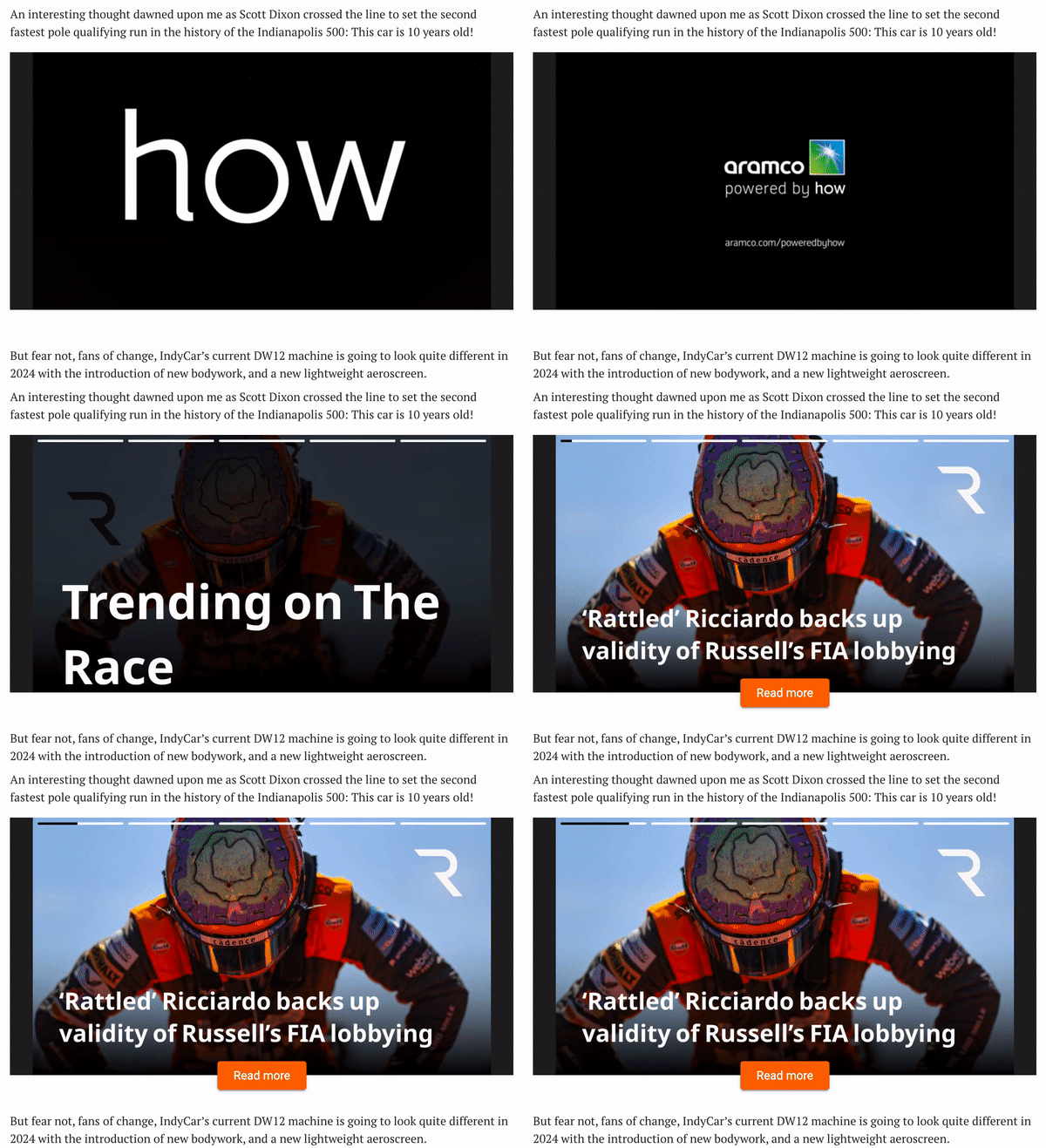 Auto-content is a powerful system that builds videos on the fly. It allows you to tap into video monetisation without investing in your own video content creation, while also circulating users around your sites!
We either look to your RSS feed for the latest articles, or through our logs for the most popular articles. We then piece together a video using your article's title and feature image along with your publisher branding (logo and display name) to create bespoke video content. For each article shown, a "Read more" button is displayed linking to that article, circulating users around your site with all actions of course viewable from our reporting!
Content is periodically re-generated to keep it up-to-date. Each generated video is viewable from the video config that controls it, so you can always see what we are serving!
*NOTE:* Please allow up to 30 minutes for your auto-content to be built upon the creation or implementation of change.
### Branding
Be sure to set your publisher's display name and logos inside publisher settings if you want these to be added to your auto-content video.
### RSS Feed
If you select the "Latest" content focus, then we will look for the RSS feed set in your publisher settings. This can be any URL, for example, you could use a 3rd party service to curate an RSS feed just for your video content!
**Your RSS feed must contain a `title`, `link`, `pubDate` and `media` or image `enclosure` field.**
### Rendering
Content is periodically re-generated to keep it up-to-date. Each generated video is viewable from the video config that controls it, so you can always see what we are serving.
We can fail to generate content for a number of reasons, so we make every effort to show you the reason for failure in the dashboard. Simply go to the relevant video config and select the target in the "Auto-content preview" section. Videos can fail if there is not enough content found, missing images in your RSS feed, RSS feed errors etc.
Also, be sure to set your publisher's display name (how you would like your brand to be written), and light and dark logos on the publisher settings page, so these can be added to your video.
## Video playlist
You can upload your own video content. This can be used instead of auto-content if you have your own video content/strategy or can be used as a fallback to auto-content if you want to guarantee video ad serving opportunity.
Simply upload your files (or drop in the link to any self-hosted content) and make your selection, dragging items to re-order as needed.
If auto-content is enabled, auto-content will always take precedence, and only fall back to your playlist when needed. See [video config hierarchy](/publishers/video-config#hierarchy).
## Targets
Targets are either the organisation you are logged in as, a publisher, or an audience.
Selecting your organisation means all publishers will inherit these settings by default. This will NOT create an organisation-level video via auto-content but will create one video per publisher where applicable.
Publisher and audience targets act as you would expect. Be aware that each target can only be used in one video config, and that when a page on a publisher's site matches more than one target, the more granular targets take precedence, see [video config hierarchy](/publishers/video-config#hierarchy).
## Hierarchy
You can target video content to your organisation (network default), individual publishers and audiences. Each target can only be used once, and the more granular targets take precedence.
For example, if you have a config set up for your entire network, another for a publisher and another for an audience, if a particular publisher page on site matches all three, the Audience config will be used, followed by the publisher config (if the audience is not matched) then by the organisation config.
```mermaid theme={null}
flowchart TD
start([In-stream unit loads])
ender([No videos to load, abort])
audience1{Audience config match?}
audience2{Auto-content enabled and found?}
audience3([Load Auto-content & loop])
audience4{"Has fallback video(s)?"}
audience5(["Load fallback video(s)"])
publisher1{Publisher config match?}
publisher2{Auto-content enabled and found?}
publisher3([Load Auto-content & loop])
publisher4{"Has fallback video(s)?"}
publisher5(["Load fallback video(s)"])
organisation1{Organisation config match?}
organisation2{Auto-content enabled and found?}
organisation3([Load Auto-content & loop])
organisation4{"Has fallback video(s)?"}
organisation5(["Load fallback video(s)"])
style audience3 fill:#F66F5E
style audience5 fill:#F66F5E
style publisher3 fill:#F66F5E
style publisher5 fill:#F66F5E
style organisation3 fill:#F66F5E
style organisation5 fill:#F66F5E
style ender fill:#F66F5E
start --> audience1
audience1 -- Yes --> audience2
audience2 -- Yes --> audience3
audience2 -- No --> audience4
audience4 -- Yes --> audience5
audience4 -- No --> publisher1
audience1 -- No --> publisher1
publisher1 -- Yes --> publisher2
publisher2 -- Yes --> publisher3
publisher2 -- No --> publisher4
publisher4 -- Yes --> publisher5
publisher4 -- No --> organisation1
publisher1 -- No --> organisation1
organisation1 -- Yes --> organisation2
organisation2 -- Yes --> organisation3
organisation2 -- No --> organisation4
organisation4 -- Yes --> organisation5
organisation4 -- No --> ender
organisation1 -- No --> ender
```
Auto-content is a powerful system that builds videos on the fly. It allows you to tap into video monetisation without investing in your own video content creation, while also circulating users around your sites!
We either look to your RSS feed for the latest articles, or through our logs for the most popular articles. We then piece together a video using your article's title and feature image along with your publisher branding (logo and display name) to create bespoke video content. For each article shown, a "Read more" button is displayed linking to that article, circulating users around your site with all actions of course viewable from our reporting!
Content is periodically re-generated to keep it up-to-date. Each generated video is viewable from the video config that controls it, so you can always see what we are serving!
*NOTE:* Please allow up to 30 minutes for your auto-content to be built upon the creation or implementation of change.
### Branding
Be sure to set your publisher's display name and logos inside publisher settings if you want these to be added to your auto-content video.
### RSS Feed
If you select the "Latest" content focus, then we will look for the RSS feed set in your publisher settings. This can be any URL, for example, you could use a 3rd party service to curate an RSS feed just for your video content!
**Your RSS feed must contain a `title`, `link`, `pubDate` and `media` or image `enclosure` field.**
### Rendering
Content is periodically re-generated to keep it up-to-date. Each generated video is viewable from the video config that controls it, so you can always see what we are serving.
We can fail to generate content for a number of reasons, so we make every effort to show you the reason for failure in the dashboard. Simply go to the relevant video config and select the target in the "Auto-content preview" section. Videos can fail if there is not enough content found, missing images in your RSS feed, RSS feed errors etc.
Also, be sure to set your publisher's display name (how you would like your brand to be written), and light and dark logos on the publisher settings page, so these can be added to your video.
## Video playlist
You can upload your own video content. This can be used instead of auto-content if you have your own video content/strategy or can be used as a fallback to auto-content if you want to guarantee video ad serving opportunity.
Simply upload your files (or drop in the link to any self-hosted content) and make your selection, dragging items to re-order as needed.
If auto-content is enabled, auto-content will always take precedence, and only fall back to your playlist when needed. See [video config hierarchy](/publishers/video-config#hierarchy).
## Targets
Targets are either the organisation you are logged in as, a publisher, or an audience.
Selecting your organisation means all publishers will inherit these settings by default. This will NOT create an organisation-level video via auto-content but will create one video per publisher where applicable.
Publisher and audience targets act as you would expect. Be aware that each target can only be used in one video config, and that when a page on a publisher's site matches more than one target, the more granular targets take precedence, see [video config hierarchy](/publishers/video-config#hierarchy).
## Hierarchy
You can target video content to your organisation (network default), individual publishers and audiences. Each target can only be used once, and the more granular targets take precedence.
For example, if you have a config set up for your entire network, another for a publisher and another for an audience, if a particular publisher page on site matches all three, the Audience config will be used, followed by the publisher config (if the audience is not matched) then by the organisation config.
```mermaid theme={null}
flowchart TD
start([In-stream unit loads])
ender([No videos to load, abort])
audience1{Audience config match?}
audience2{Auto-content enabled and found?}
audience3([Load Auto-content & loop])
audience4{"Has fallback video(s)?"}
audience5(["Load fallback video(s)"])
publisher1{Publisher config match?}
publisher2{Auto-content enabled and found?}
publisher3([Load Auto-content & loop])
publisher4{"Has fallback video(s)?"}
publisher5(["Load fallback video(s)"])
organisation1{Organisation config match?}
organisation2{Auto-content enabled and found?}
organisation3([Load Auto-content & loop])
organisation4{"Has fallback video(s)?"}
organisation5(["Load fallback video(s)"])
style audience3 fill:#F66F5E
style audience5 fill:#F66F5E
style publisher3 fill:#F66F5E
style publisher5 fill:#F66F5E
style organisation3 fill:#F66F5E
style organisation5 fill:#F66F5E
style ender fill:#F66F5E
start --> audience1
audience1 -- Yes --> audience2
audience2 -- Yes --> audience3
audience2 -- No --> audience4
audience4 -- Yes --> audience5
audience4 -- No --> publisher1
audience1 -- No --> publisher1
publisher1 -- Yes --> publisher2
publisher2 -- Yes --> publisher3
publisher2 -- No --> publisher4
publisher4 -- Yes --> publisher5
publisher4 -- No --> organisation1
publisher1 -- No --> organisation1
organisation1 -- Yes --> organisation2
organisation2 -- Yes --> organisation3
organisation2 -- No --> organisation4
organisation4 -- Yes --> organisation5
organisation4 -- No --> ender
organisation1 -- No --> ender
```